Windows companion app
SWSD for AI apps installs swsd-mcp on this PC and chooses which tools your AI apps can use. Your JSON Web Token is saved in Windows Credential Manager. Pictures use example data.
Set up this PC
Section titled “Set up this PC”- Install the Windows
swsdplugin. - Start a new local chat and ask to set up SWSD on this computer.
- On Set up, select Install tools. This setup needs Node.js 24.15 or newer within version 24, or Node.js 26 or newer, with npm. Node 25 is not supported. If Node.js is missing or outside those versions, setup can install the current Node.js LTS through winget after you confirm. Windows may ask for administrator approval. Reopen the app when installation finishes.
- Choose United States (
https://api.samanage.com) or Europe (https://apieu.samanage.com), paste your JSON Web Token, and select Test. The field stays masked. - Choose a profile. The choice is saved immediately. Quit and reopen the AI app, then start a new chat so the server loads that tool set.
- Open it again from SWSD Setup on the Start menu.
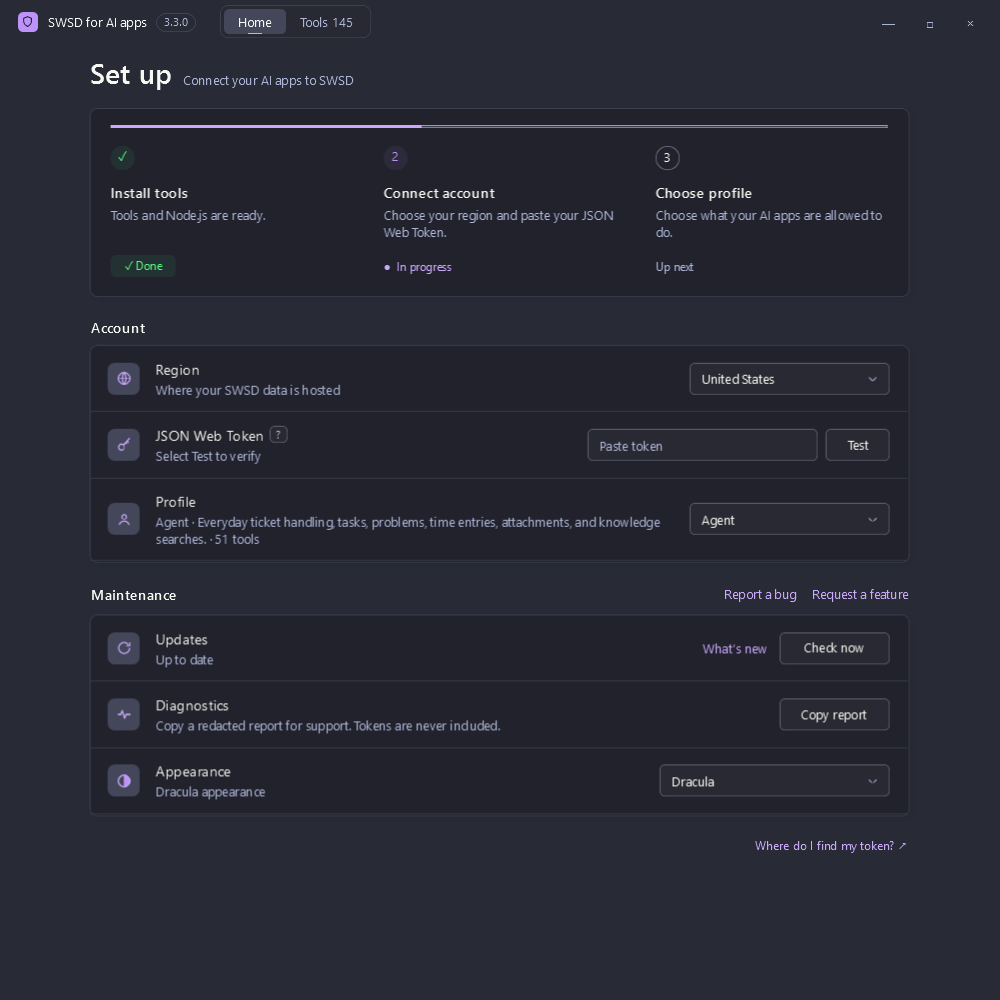
Install the tools, then add your JSON Web Token.
? beside JSON Web Token, and Where do I find my token?, show where to copy it in SWSD. Generate a JSON Web Token only when none is shown.
Settings, custom profiles, and the installed tools live under %LOCALAPPDATA%\swsd-mcp. The token stays in Windows Credential Manager. See Security.
Connection and status
Section titled “Connection and status”Home shows whether you are ready to work:
| Status | What it reports |
|---|---|
| Node.js | Installed version, and whether this setup accepts it |
| SWSD tools | Installed swsd-mcp version |
| JSON Web Token | Masked value, and Verified after Test |
| Region | United States or Europe |
| Profile | Active profile and its tool count |
| Updates | Up to date, or that a newer published release is available |
Changing the region clears the verified state until you select Test again. Repair reinstalls the tools. Remove saved JSON Web Token deletes the credential on this PC. Quit the AI app afterwards so a running server stops using its in-memory copy. The token remains valid in SWSD until it is revoked there.
Tool guide
Section titled “Tool guide”Tools is a searchable catalog of all 145 tools for the profile you select. Ctrl+F focuses search, which matches the friendly name, the tool id, and the description. If nothing matches, try another name, id, or area.
Area chips limit the list to tools that profile includes, such as Incidents or Knowledge. Each tool is marked Read, Edit, or Delete. Read looks up a record, Edit creates or changes one, and Delete always previews the record first. A delete tool is available in Operations, or in a custom profile that includes it, and asks you to confirm the record before removing it.
Tools outside the profile stay grouped apart until you search. A match can point you to a profile that includes it, and you can switch to that profile from the detail. Select a tool to see where it is available and copy an example prompt.
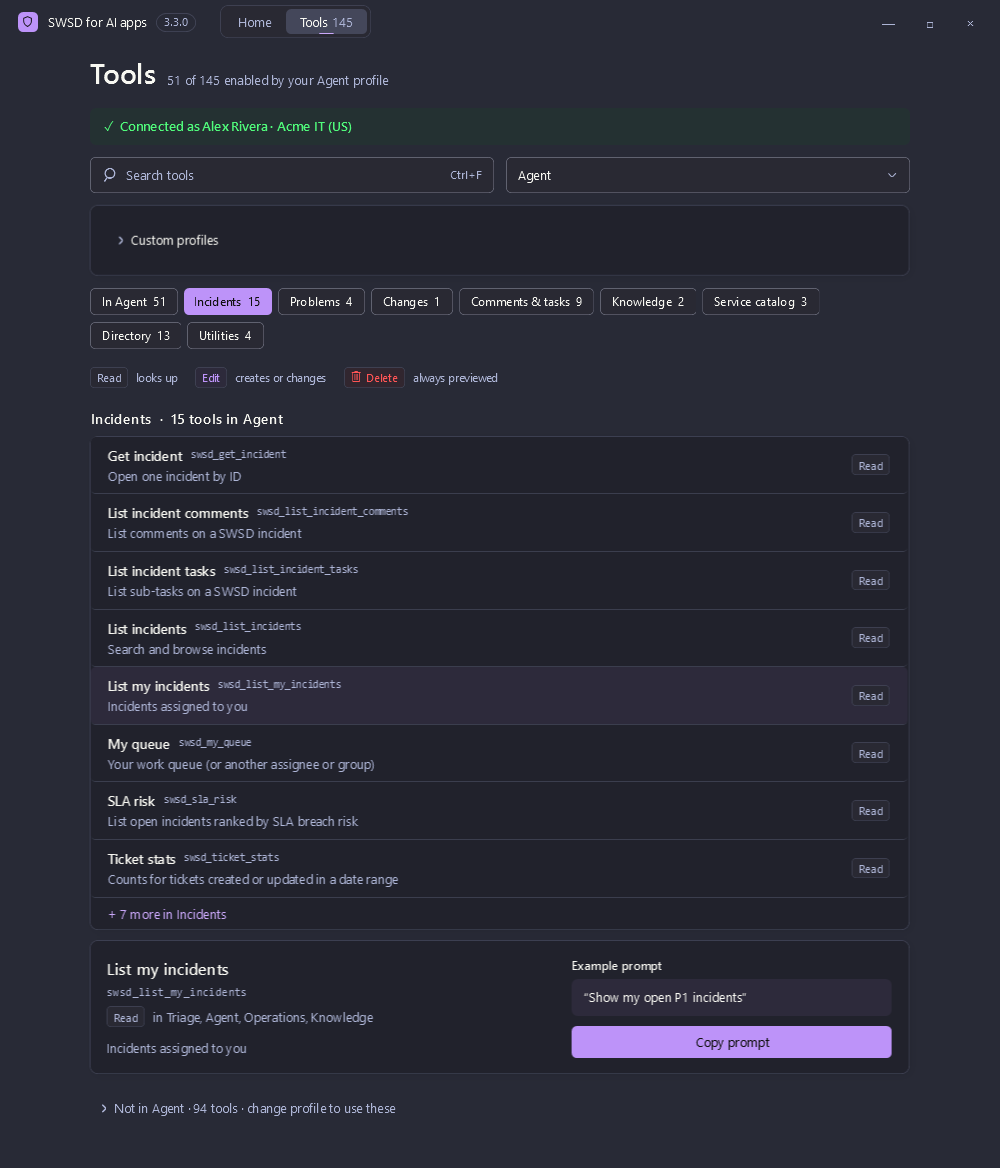
See which tools a profile includes, and copy an example prompt.
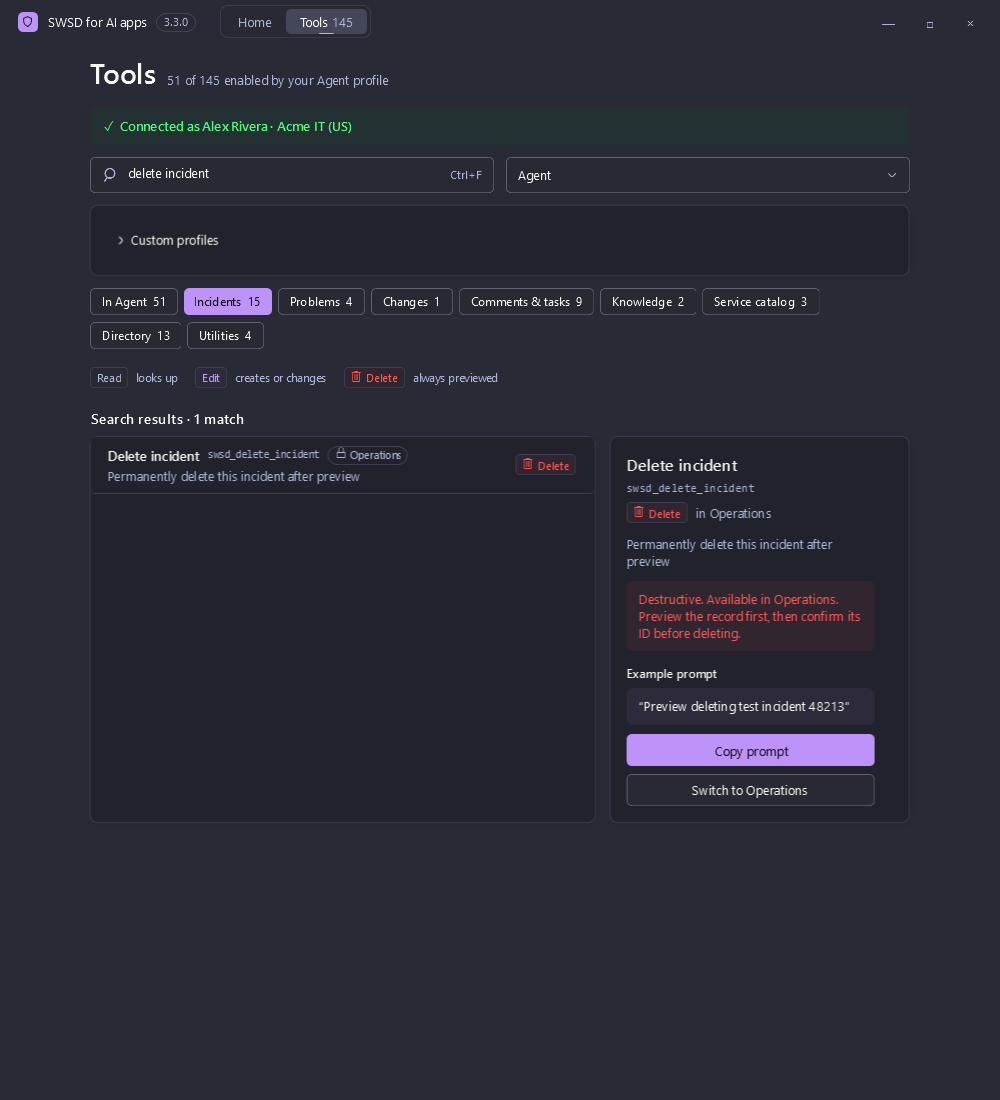
Find a tool outside the current profile and switch to one that includes it.
Custom profiles
Section titled “Custom profiles”Open Custom profiles on Tools:
- Enter a name and an optional description.
- Check the tools your AI apps may use.
- Select Save profile. The profile becomes the active selection and appears in the Home and Tools pickers.
Rename saves the profile under the new name. Delete removes it. Deleting the active custom profile returns the selection to Agent. New clears the form.
Export JSON saves the profile as a file you can share. Import JSON loads a file into the builder. Select Save profile to start using an import. The file is the same version-1 profile documented in Custom profiles: name, version, tools, and an optional description. Extra fields are rejected. Unknown tool names are skipped and listed. Names that match Triage, Agent, Knowledge, Operations, or Full are reserved.
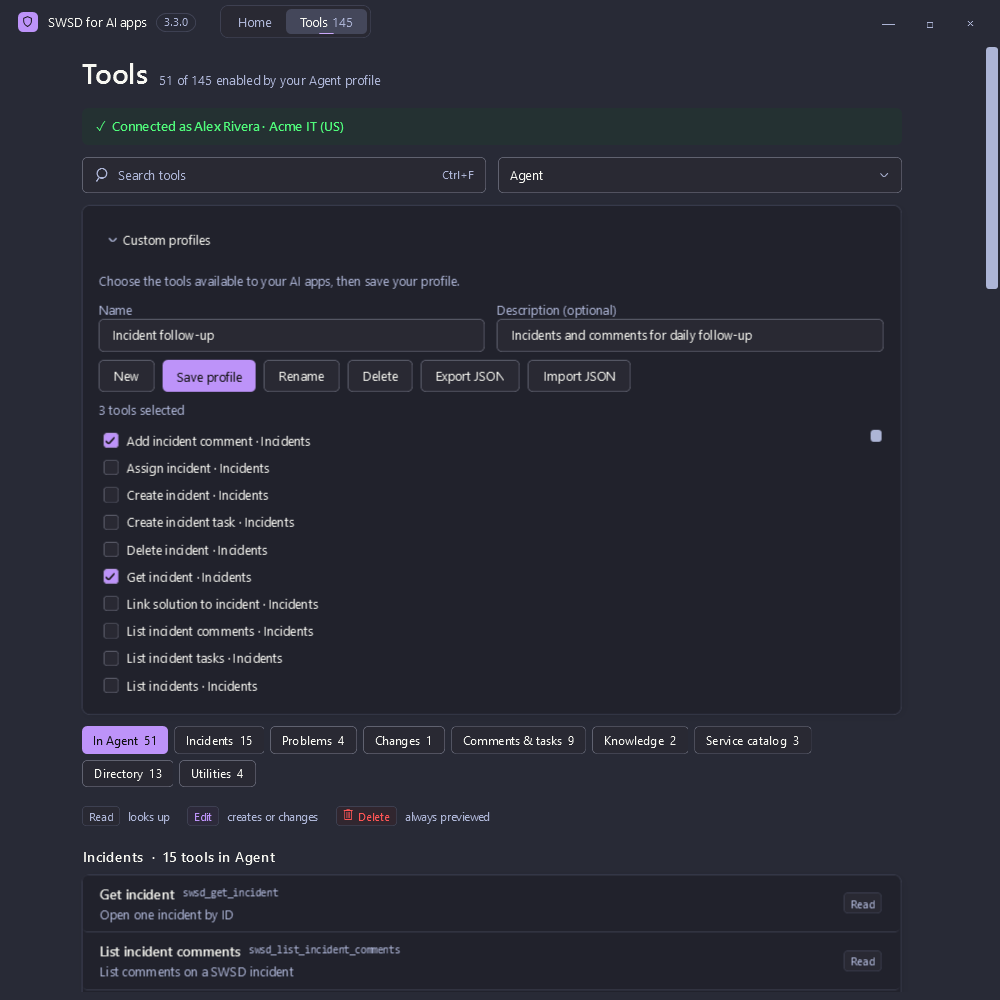
Choose the tools in a named profile, then save or share it as JSON.
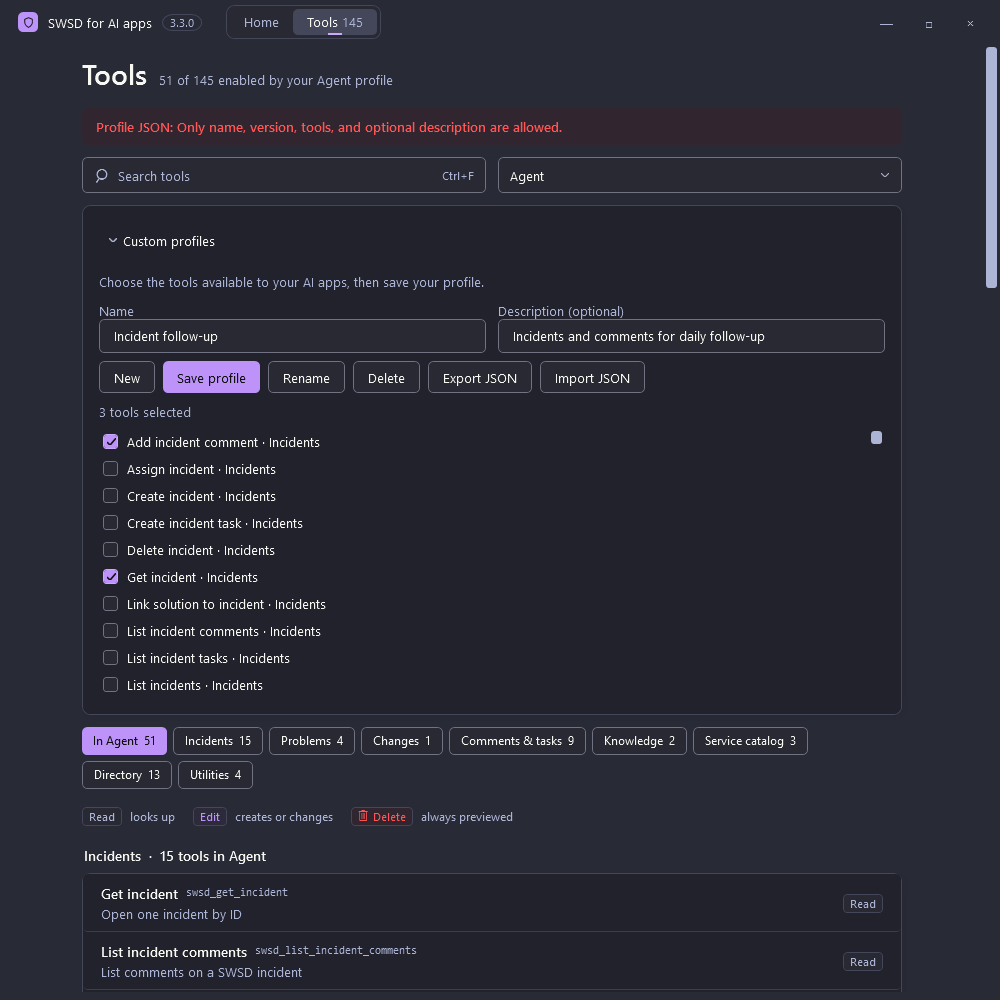
An import has to use the supported profile file.
| Profile | Tools | Use |
|---|---|---|
| Triage | 21 | Incident review, catalog context, task and problem visibility, and comments |
| Agent | 51 | Everyday ticket handling, tasks, problems, time entries, attachments, and knowledge search |
| Knowledge | 17 | Knowledge search, article creation and updates, and incident context |
| Operations | 145 | Every tool. SWSD account permissions still apply |
| Custom | Your list | The tools checked in the builder |
Older settings saved as Full open as Operations. Other MCP clients still select an exported file with SWSD_PROFILE=custom and SWSD_PROFILE_FILE.
Appearance
Section titled “Appearance”Appearance follows Match Windows, or you can choose Light, Dark, or a named theme. The choice is saved on this PC and applies as soon as you select it.
Dracula, Catppuccin Mocha, Catppuccin Macchiato, Catppuccin Frappe, Catppuccin Latte, Nord, Gruvbox Dark, Gruvbox Light, Tokyo Night, Tokyo Night Storm, Tokyo Night Day, One Dark, One Light, Solarized Dark, Solarized Light, Rosé Pine, Rosé Pine Moon, Rosé Pine Dawn, Monokai, Material Ocean, GitHub Dark, and GitHub Light.
Updates, diagnostics, and release notes
Section titled “Updates, diagnostics, and release notes”Check now looks for a newer published release. When one is available, Update installs it after checking the package, and keeps your current tools if the install does not finish.
What’s new opens the release notes on this PC, including changes that are not published yet.
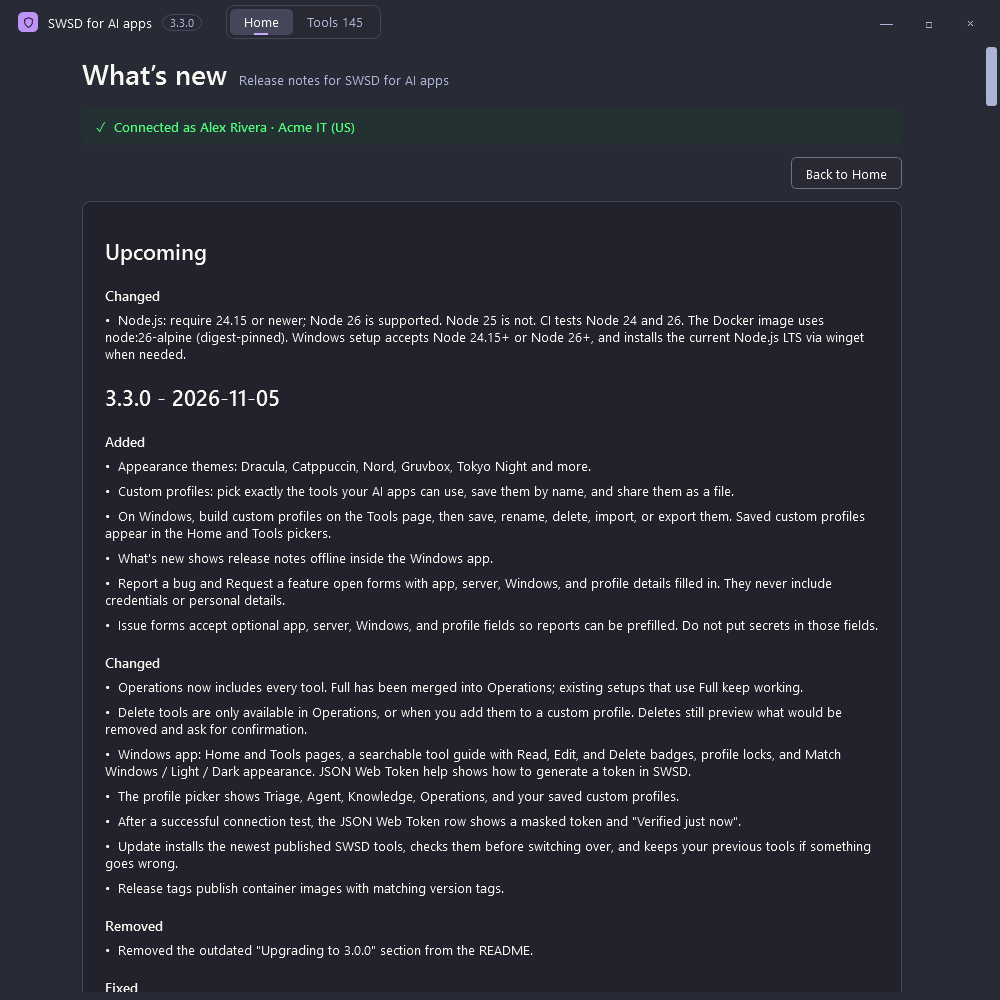
Read what changed, including notes that are not in a published release yet.
Copy report copies a diagnostics summary for support: app and package versions, Windows and PowerShell versions, Node.js, whether tools are installed, the profile, the region, whether a credential is saved, display scale, and a short redacted log. The report does not include your token.
Help and issue links
Section titled “Help and issue links”Report a bug and Request a feature open GitHub with the app version, server version, Windows version, and profile filled in.